
Hand off a calendar event via iMessage — one tap
Grandma doesn't have FamilyBoard. You still loop her in via iMessage — time, place, and a short note come pre-written. One tap and it's sent.
It's Thursday at 4:15 PM. You're stuck in a meeting that ran long, pickup is at 5 PM, and you fire off a text to grandma: "Can you get Noah today?" She replies "Sure!" and then, thirty seconds later: "Where is it?" You write the address. She asks which entrance. You tell her. She asks whether Noah has anything with him. You answer. It is now 4:24 PM, you are still in the meeting, and somewhere in that text thread half the information has already gotten lost. Noah is waiting at school by the wrong door at 5:12 PM and grandma is circling the block.
This is not grandma's fault. It is not yours either. It is an information problem — too much coordination resting on your ability to write the right things in the right order under pressure.
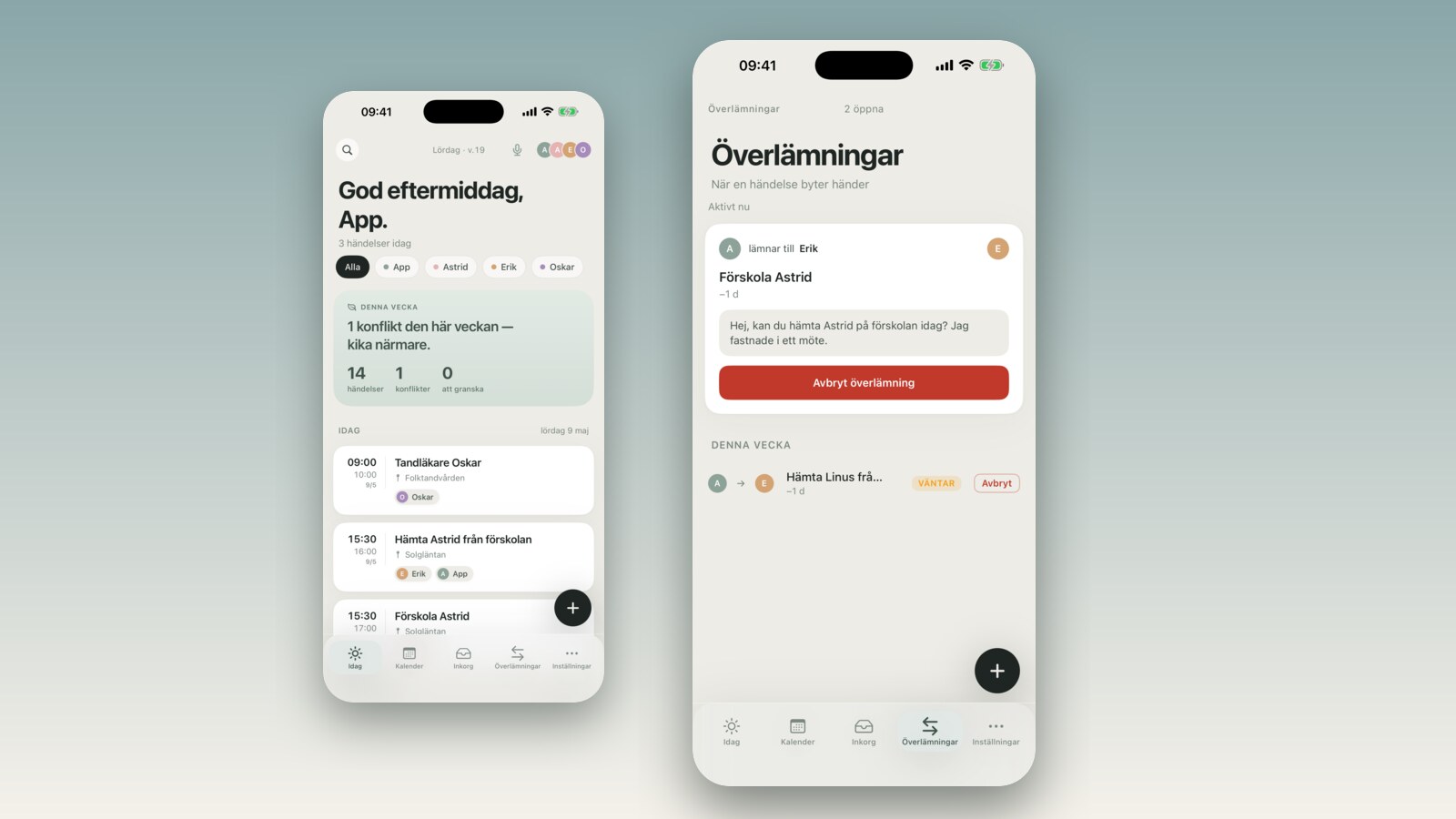
In FamilyBoard v2.4 you can hand off an activity via iMessage with one tap. Time, place, and a short note are already written. The recipient does not need the app.
What changed
FamilyBoard has had a "hand off" feature for a while — it lets you transfer an activity to another person in your family. What was missing was support for people outside the app. Grandma. The neighbor doing a one-off pickup. The other parent who hasn't installed FamilyBoard yet.
In v2.4 we extended handoffs with a new option: Hand off via iMessage. Instead of an internal FamilyBoard notification going to an app user, the Messages app opens with a pre-filled text message — already including time, address (as a Maps link), the child's name, and an optional short note from you. The recipient just replies with a thumbs up.
Inside FamilyBoard you can still follow up to see whether the person confirmed, or whether it might be time to send a reminder. But you don't need to ask again. You already sent everything.
How it works
1. Open the activity. Tap the event in the calendar — the pickup, the practice, the doctor's appointment. It doesn't matter what type of activity it is.
2. Tap "Hand off." The button sits in the activity view. You see the usual options (transfer internally to a family member) plus the new one: "Hand off via iMessage."
3. Pick a contact. The contact picker opens. This is your regular iOS contacts list — grandma, the neighbor, whoever.
4. Review the message. Before you send you see a preview of the pre-filled message. It contains: the activity name, time and date, the address as a tappable Maps link, the child's name, and your optional short comment. You can edit it just like a regular iMessage.
5. Send with one tap. The Messages app opens with everything pre-filled. You tap send. Back in FamilyBoard the activity is marked as "handed off — awaiting confirmation."
The recipient only needs iMessage. No apps, no accounts, no instructions.
When it is useful
The obvious scenario is grandparents. They are willing to help, they know how to pick up a grandchild, but they have not downloaded a new app and should not need to for a single errand. With the iMessage handoff they get everything they need in one message bubble — no follow-up questions required to find the right place.
It works just as well for a neighbor or a friend doing a one-time pickup. You know they are great with kids. You do not know whether they want to install a calendar app for the occasion. Now they don't have to.
The third scenario is more delicate but more common than you might expect: the other parent who has not installed FamilyBoard. The internal handoff system in FamilyBoard works smoothly when both parents are in the app — but that is a separate decision to make. The iMessage handoff lets you send coordination information in a structured, traceable way without the handoff stalling because the other side is not yet connected. We have written more about that pattern in how to loop in grandma and grandpa.
How it compares to a regular text
The obvious alternative is writing a text yourself. That works — if you have time, if you remember to include the address, if you're not in a meeting. Most texts in this context are written under stress and are missing at least one of: exact time, correct address, the child's name, what the child has with them. That is not carelessness — it is cognitive load at the wrong moment.
Sharing an Apple Calendar event via the share menu sends an .ics file. The recipient has to tap it, decide whether to import it to their calendar, and then have enough calendar integration for the Maps link to appear. Not impossible, but it is four steps for a grandparent reading iMessage on their phone.
A Calendar invite via iCloud requires an Apple ID on the recipient's end, that they accept the invite, and that they have iCloud Calendar enabled. Again — all of these are reasonable, but they are preconditions you can't always control.
FamilyBoard's iMessage handoff is a plain text message with the information structured by the app, not by you in the moment. The recipient sees exactly what they need to know and the Maps link works regardless of whether they have an iPhone or Android — the links point to google.com/maps, not Apple Maps. No apps. No accounts. Nothing to approve.
How to get started
The feature is available from FamilyBoard v2.4 onwards for all premium subscribers. The handoff itself happens from an iPhone or iPad, since iMessage is an Apple service — if you use FamilyBoard on Android a regular SMS opens instead with the same pre-written text. Update the app, open any activity, and test it with a pickup you would have had to coordinate anyway. See the full v2.4 update for an overview of everything else that is new, or read about all the coordination tools for shared family situations.
The easiest way to start is to send a test handoff to yourself — pick your own number, check how the message looks, and you'll have a reference for how the recipient experiences it. The app is available to download on the home page.
Frequently asked questions
Does the recipient need FamilyBoard? No. That is the entire point. The recipient only needs iMessage — which practically every iPhone user has. No account, no download.
Does it work on Android or regular SMS? The feature uses the iOS Messages app and opens an iMessage draft. If the recipient's number is linked to an Android device it is sent as a regular SMS (blue bubble → green bubble — the usual thing). The content is the same. The Maps link in the message points to Google Maps and works on Android.
Can I see whether they confirmed? Yes. In FamilyBoard the activity shows as "handed off" with the status "awaiting confirmation" until the recipient replies with something (an "OK," a thumbs up, anything). We do not analyze the content of the reply — we just mark that a response came in. You can also see if you sent a message but got no reply and want to follow up.
What exactly does the message say? Something like this: "Hi! Can you pick up Noah today? Time: 5:00 PM. Location: Washington Elementary, 400 Oak Street → [Open in Maps]. Noah has his swim bag with him. Thanks! / Emma via FamilyBoard." Title, time, link, the child's name, and your comment if you added one. You see the full text in the preview before you send, and you can edit it.
Does the Maps link work if the recipient has Android?
Yes. The link points to google.com/maps with the coordinates or address pre-filled. Works in any mobile browser and opens the Google Maps app directly if it is installed. We deliberately do not use maps.apple.com for exactly this reason.