
Forward school emails to calendar — AI does the rest
Forward an email from school or coach to your private FamilyBoard address — AI reads out time, place, and things to bring. You approve in the Inbox.
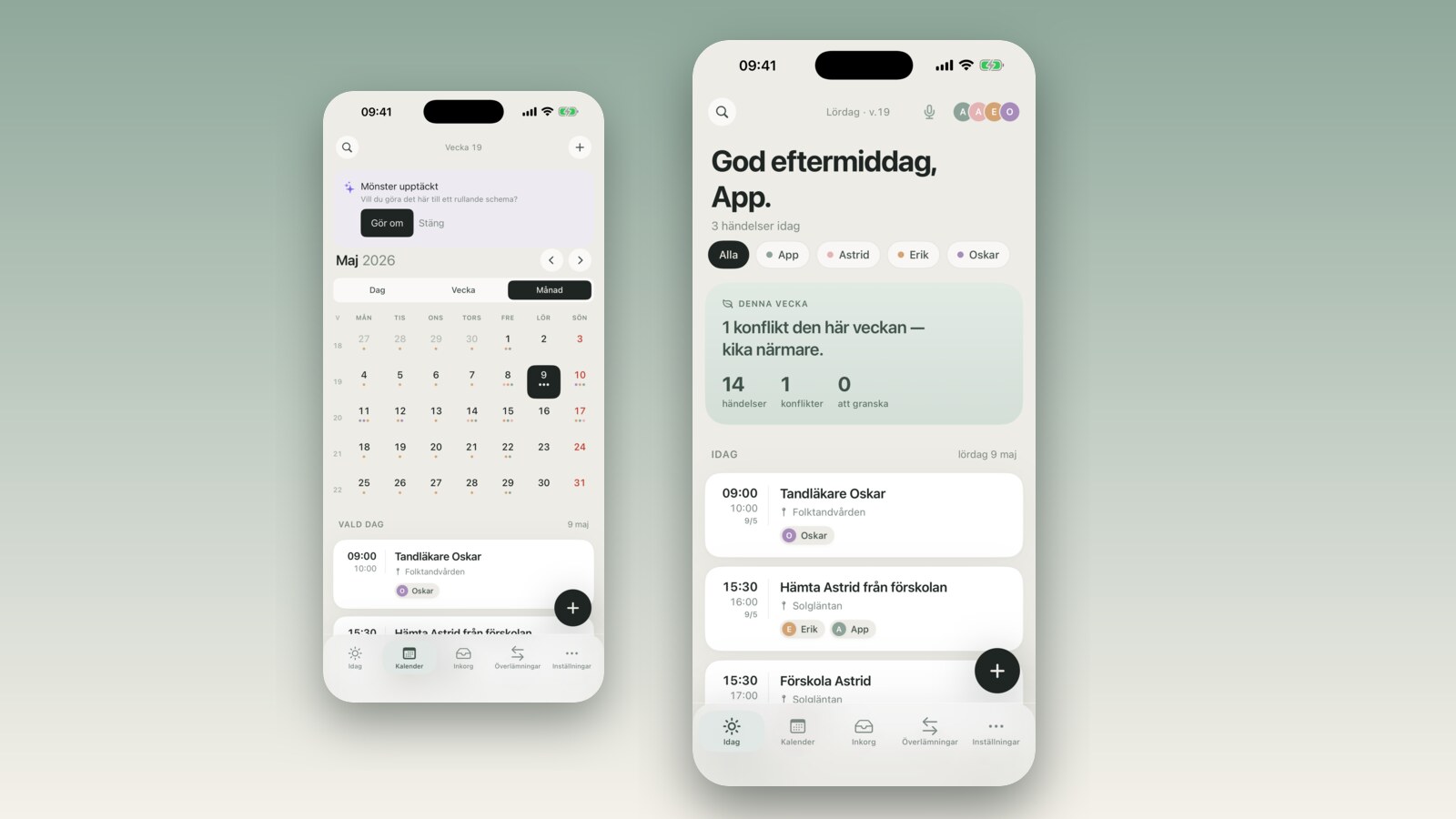
It's 2:32 PM on a Tuesday. You're sitting in the car in the parking lot outside the grocery store. Your phone buzzes — an email from the soccer coach: Saturday's game has moved to Sunday at 10 AM, Riverside Field. You read it quickly, think "I'll deal with that when I get home," forget it, and on Friday evening you find yourself wondering why nobody is heading out to the game.
That is not a personal failing. It is the friction between your inbox and your calendar. A human brain should not have to carry a time and a date in short-term memory for three days.
In FamilyBoard v2.4 we built a solution that takes two taps instead of eight. You forward the email to your private FamilyBoard address (calendar-xxx@inbox.familyboard.io). AI reads out the time, place, attendees, and anything to bring, and proposes an event in the Inbox. The next time you open the app you see the suggestion — you check that the right child is assigned, confirm the time looks right, tap approve. Done.
What changed
FamilyBoard previously had three ways to add events: voice, photo, and text. All three require you to be in the app. But a large chunk of family schedule information arrives by email — from the school, the club, the daycare, the coach. Going from an email to a calendar event used to take 6–8 steps: read the email, open the app, find the right child, enter a title, enter a time, enter a location, set reminders, save.
In v2.4 there is a fourth way: forward. Every family gets a private alias address. An email you send there:
- Is received by a Cloudflare Email Routing worker that verifies the sender.
- Is passed to a Supabase Edge Function that stores the email and triggers AI extraction.
- AI reads out time, place, attendees, and things to bring, and saves the suggestion as an "AI extraction."
- A notification appears on your device — "1 new suggestion in Inbox."
- You review in the app, connect to the right child if it was not picked up automatically, approve.
How it works
1. Get your address. Open FamilyBoard → Settings → Inbox email. Tap "Create my address." You get a private alias like calendar-x7tg2k@inbox.familyboard.io. It is randomly generated so nobody can guess it.
2. Save it in your contacts. Or just create a contact named "FamilyBoard Inbox" so you don't have to copy the address every time.
3. Forward an email. Standard email forwarding. You can add a comment at the top if you want ("this one is for Noah" or "change the date to Sunday"). AI reads your comment too.
4. Wait 5–15 seconds. The suggestion appears in the Inbox inside the app, or as a push notification if you have that enabled.
5. Review and approve. In the suggestion view you see time, place, AI's guess at the attendees (as chips), and any "what to bring" items. If the guess is wrong — change it. Tap "Create event." Done.
When it is useful
Emails from schools, clubs, and coaches share one trait: they are written for a human, not a machine. Times appear as "Thursday the 17th at 6:30 PM, meet 15 minutes early" — not in .ics format. Locations are "at the main entrance to the sports hall" — not as GPS coordinates. That is why Google Calendar's classic "add from Gmail" feature works poorly here: it is designed for meeting invitations, not the parenting version of reality.
The AI's job is to read like a human being. It recognizes that "Thursday the 17th" means May 17th because we are in May 2026, that "meet 15 minutes early" implies a prep reminder, and that the sender address coach@riversidesoccerclub.com maps to the club your child already belongs to.
Three concrete scenarios:
School email rescheduling a time or day. "Parent council moved to Thursday at 6:30 PM" — forwarded, AI finds the time immediately, adds Lily as an attendee because the sender is a class teacher. Nothing for you to adjust.
Coach email with a new location. "Tonight's practice is at Riverside Field, not the usual pitch" — AI recognizes "Riverside Field" via Google Places and fills in address and parking. When you get in the car you tap the pin and Google Maps opens.
Coach email about what to bring. "Don't forget goggles and swim cap on Friday" — AI extracts not just the time but also "goggles, swim cap" as a what to bring list on the event. The evening before at 8 PM you get a notification: "Remember goggles and swim cap for tomorrow's swim practice."
How it compares to Google Calendar and iCloud
Google Calendar has long offered "Add to Calendar from Gmail" — automatic parsing of formal meeting invitations and structured content. Works well for a calendar invite from a colleague. Does not work for 90% of parent emails, which are plain unstructured text.
iCloud Calendar has Siri extraction ("find events in mail"), but you have to manually accept each suggestion on iPhone, and it does not work at all if the email is in the Gmail app.
FamilyBoard's inbox address works the opposite way: no connection to your email provider is needed (you send the email here, not the other way around). It works equally well whether you use Outlook, Gmail, Apple Mail, or a work address. And the AI is not just a calendar parser — it connects to the right child in your family and pulls out packing items.
How to get started
The address is active from the second you create it. Forward an email you received from school in the past week — it is a safe way to try it out before you start relying on it for genuinely important events. If AI misses something it is easy to correct in the suggestion view before you approve.
We have written more about the pattern of forwarding school emails in how to stop the school-email chaos — that post goes into what happens under the hood and how you coach the AI to guess the right child. You can also read about the full v2.4 update or see all features on the home page.
What it does not do
The inbox address is not:
- A backup for your real email address. Emails are deleted after 30 days and are not searchable like an email client.
- An automatic collector. You have to actively forward. We do not read your email and scan for "calendar events" — that would require access to your entire inbox, which we do not want.
- An auto-approver. The suggestion always lands in the Inbox for review first. We never create an event without you seeing it and tapping approve — because the guess is sometimes wrong, and an event on the wrong date is worse than no event at all.
Frequently asked questions
Are the emails private? Yes. Emails are stored encrypted for 30 days and then automatically deleted. We use them only to extract calendar data. No ads, no third parties, no training data to external AI models. The address is randomly generated so nobody outside can guess it.
Can I have multiple addresses? No, one per family. But you can rotate the address if you think it has been compromised — emails sent to the old address will bounce back to the sender.
What if AI guesses wrong? The suggestion always lands in the Inbox for review before it becomes an event. You change the time, place, or attendees before tapping approve. AI does not learn from your corrections (for privacy reasons) — that is why the review step is always there. In our experience, time and place are usually parsed correctly; what most often needs adjusting is which child the event belongs to.
Does it work with attachments? Attachments (PDFs, images) are not stored. AI only reads the text in the email body and subject line. If important information is in an attached PDF — copy it into the email body before forwarding.
Does it count against the AI quota? Yes, each extraction counts against your monthly quota. The free tier has 5 extractions per month. Premium is unlimited.